
Sometimes you don’t need a scientific calculator, a spreadsheet or a phone app with a hundred buttons. You need to add up a receipt, split a bill, check a discount or work out a tip. This 4 function calculator does exactly that, with the same keys and the same habits as the pocket calculator in a kitchen drawer. One thing it does differently from most handhelds: it lets you choose how it handles the order of operations.

What a 4 function calculator does
The four functions are addition, subtraction, multiplication and division. Almost every basic model adds a few helpers on top: a percent key, a square root key, a ± key to flip the sign, and a memory register (MC, MR, M+, M−). What you won’t find is exponents beyond the square root, fractions, trigonometry or logarithms. That’s deliberate. Some classrooms and exams restrict students to a basic model so the calculator handles arithmetic but not the actual problem-solving.
| Key | What it does | Example |
|---|---|---|
| + − × ÷ | The four operations | 84 ÷ 4 = 21 |
| % | Converts to a percent, or takes a percent of the running total | 200 + 10 % = 220 |
| √ | Square root of the number on screen | √ 144 = 12 |
| ± | Changes the sign of the current number | 7 ± → -7 |
| M+ / M− | Adds to / subtracts from memory | running totals |
| MR / MC | Recalls / clears memory | |
| AC | Clears everything | |
| ⌫ | Deletes the last digit you typed |
Chain mode vs order of operations
This is the one thing worth understanding before you trust any basic calculator. Type 2 + 3 × 4 = into a typical handheld and it shows 20. Type the same thing into a scientific calculator and it shows 14. Neither is broken. They follow different rules.
A four-function calculator usually works in chain mode (also called immediate execution). Each time you press an operator, it finishes the previous operation first. So it sees 2 + 3, shows 5, then multiplies that by 4. A scientific calculator uses algebraic mode: it waits until you press equals, then does multiplication and division before addition and subtraction, which is the order of operations taught in school.
This calculator starts in chain mode because that’s what “4 function calculator” means to most people, and it’s what a handheld would give you. Tap “Order of operations” above the display if you’re checking homework that follows PEMDAS. The numbers and operations guide explains that order in full.
How to use the percent key (worked example)
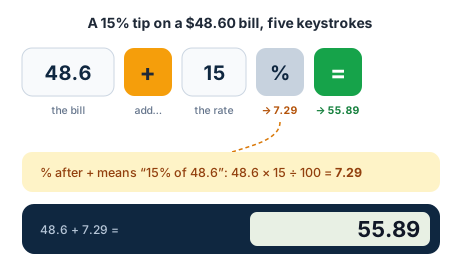
The percent key is the most useful button on a basic calculator and the least understood. Here’s a real case: a $48.60 restaurant bill with a 15% tip.
Step One: Enter the bill and the operation
48.6 +
The display shows 48.6 and the calculator remembers you’re adding.
Step Two: Enter the percent and press %
15 %
Because the pending operation is addition, the % key works out 15% of 48.6 rather than just 0.15. The display changes to 7.29, the tip itself.
48.6 × 15 ÷ 100 = 7.29
Step Three: Press equals for the total
= → 55.89
So the bill plus tip is $55.89. The same keystrokes with − instead of + take a discount off a price: 80 − 25 % = 60 is a $80 jacket at 25% off.
With multiplication, % just divides by 100: 200 × 10 % = 20. That’s the quickest way to find a percentage of anything.
Adding up a list with the memory keys
Memory is what turns a basic calculator into a decent shopping-list tool. Say you’re buying 3 notebooks at $4.99 and 2 binders at $12.50.
3 × 4.99 =   → 14.97    then M+
2 × 12.5 =   → 25       then M+
MR           → 39.97
Each M+ quietly adds the screen to a running total. An M appears on the display while memory holds anything, and MC wipes it for the next job. M− works the same way for anything you want taken off the total, like a coupon.
Repeating a calculation with equals
Press = more than once in chain mode and the calculator repeats the last operation. It’s a handy shortcut for counting by a fixed step or growing a number by a fixed percentage:
5 + 2 =  → 7,  =  → 9,  =  → 11
100 × 1.05 =  → 105,  =  → 110.25,  =  → 115.7625
That second line is 5% compound growth over three periods, done with no formula at all.
Negative numbers and decimals
Press ± to make the current number negative. -12 + 5 shows -7, just as the rules for signed numbers say it should. If negatives give you trouble, the integer calculator walks through every sign rule step by step.
Decimals behave the way you’d expect, without the strange results some computer programs give. Every answer is rounded to 12 significant digits, so 0.1 + 0.2 shows 0.3 rather than 0.30000000000000004. A basic calculator can’t enter fractions, so convert them first: 3/8 is 3 ÷ 8 = 0.375. The fraction to decimal calculator does that conversion and shows repeating decimals too.
Check the answer with a rough estimate
A calculator does exactly what you type, including the typo. A five-second estimate catches most slips. Round each number to something easy, do it in your head, and compare:
412 × 19      ≈ 400 × 20 = 8,000      calculator: 7,828     ✓ close
48.6 × 15 %   ≈ 50 × 0.15 = 7.5       calculator: 7.29      ✓ close
7.2 ÷ 0.48    ≈ 7 ÷ 0.5  = 14         calculator: 15        ✓ close
987 ÷ 31      ≈ 990 ÷ 30 = 33         calculator: 31.839    ✓ close
If the estimate and the display are wildly different, say 8,000 against 782.8, you’ve probably dropped a digit or put the decimal point in the wrong place. Dividing by a number less than 1 should always make the answer bigger, which is an easy sanity check for the third line.
Common mistakes on a basic calculator
- Assuming order of operations. On a handheld, 10 − 2 × 3 = gives 24, not 4. Either enter the multiplication first or switch modes.
- Using × when you meant +. 48.6 × 15 % = gives 7.29, the tip on its own. To get the bill plus tip in one go, use + before the 15.
- Forgetting memory is still holding a value. If the M indicator is showing, press MC before starting a new total.
- Taking the square root of a negative number. That gives an error, because real square roots of negatives don’t exist. Clear with AC and check the sign.
- Dividing by zero. Any number ÷ 0 shows Error. It’s undefined, not infinite.